HTTPS vs HTTP: SEO Impact, Chrome Warnings, and How to Switch
HTTP sends data in plain text. HTTPS encrypts it. That difference has real consequences for your Google rankings, your bounce rate, and how much your visitors trust you.
Key Takeaway
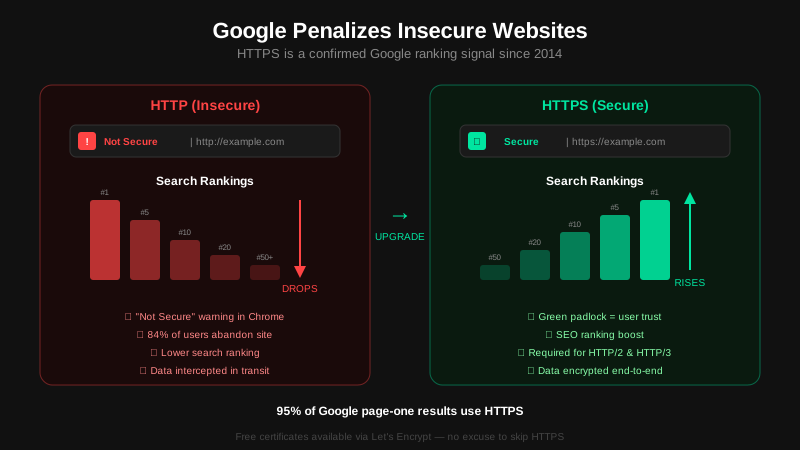
HTTPS is a direct Google ranking signal since 2014. HTTP sites also get Chrome's 'Not Secure' warning, which raises bounce rates and feeds back into rankings. Migrating is straightforward - SSL cert, 301 redirects, canonical update, HSTS header - but skipping any step causes ranking drops that take months to recover from.
What Is the Difference Between HTTP and HTTPS?
HTTP (HyperText Transfer Protocol) sends data between your browser and the server in plain text. Anyone on the same network - at a coffee shop, on a corporate proxy, or at an ISP level - can read that traffic. Passwords, form submissions, cookies: all visible.
HTTPS adds TLS (Transport Layer Security) on top. The connection is encrypted before anything leaves your browser. The server proves its identity with a certificate signed by a trusted authority. Your ISP can see you visited a domain, but not which pages or what you typed.
That is the technical difference. The practical difference is simpler: HTTPS sites show a padlock in Chrome. HTTP sites show "Not Secure." Users notice.
Does HTTPS Affect Google Rankings?
Yes. Google made it official in August 2014: HTTPS is a ranking signal. At launch they called it lightweight, affecting less than 1% of queries. The weight has grown since.
Today, over 95% of Chrome traffic uses HTTPS. That means the baseline has shifted. Google does not need to reward HTTPS heavily anymore - it penalizes HTTP by comparison. Two pages with identical content, identical backlinks, identical everything else: the HTTPS version ranks higher.
The indirect SEO impact is bigger than the direct signal. When users see "Not Secure," they leave. Higher bounce rates, shorter sessions, fewer return visits. Google uses engagement as a quality signal. An HTTP site that loses 15% of visitors to the warning will fall in rankings for reasons that have nothing to do with content quality.
What Chrome's 'Not Secure' Warning Does to Your Traffic
Chrome 68 (July 2018) started marking all HTTP pages as "Not Secure" in the address bar. Not just login pages. Not just checkout pages. Every HTTP page, including static blog posts.
The warning is particularly damaging on pages with forms. A user filling in their email address sees "Not Secure" and stops. They do not know what TLS is. They know "not secure" means something is wrong. They leave.
If Google detects something worse - malware, phishing patterns, injected spam - it escalates to a full red warning page: "Deceptive site ahead." Almost nobody clicks through a red page. Recovery requires cleaning the infection, fixing the vulnerability, and submitting a review request through Search Console. That process takes days to weeks, and the ranking damage lasts longer.
How to Switch from HTTP to HTTPS Without Losing Rankings
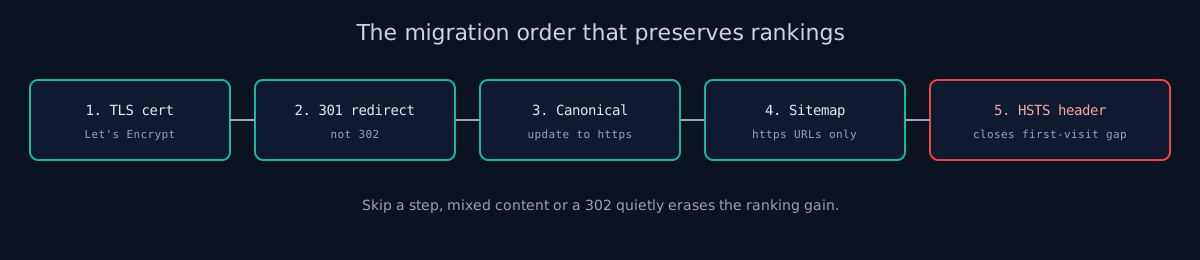
Done right, an HTTP-to-HTTPS migration preserves your rankings and often improves them within a few weeks. Done wrong, you lose months of search equity. Here is the correct sequence:
- Get a TLS certificate. Let's Encrypt provides free certificates. Most hosting providers - Vercel, Netlify, AWS, DigitalOcean, Hostinger - have one-click HTTPS setup. There is no reason to pay for a certificate for most sites.
- Set up 301 redirects. Every HTTP URL must redirect permanently to its HTTPS equivalent. Not 302. Not a redirect to the homepage. A 301 from
http://example.com/pagetohttps://example.com/page. This preserves link equity and tells Google the move is permanent. - Update your canonical tags. If your pages have
rel="canonical"pointing to HTTP URLs, update them to HTTPS. A canonical tag pointing to the wrong protocol confuses Googlebot and splits ranking signals. - Update your sitemap. Make sure your sitemap.xml lists HTTPS URLs only. Submit the updated sitemap in Google Search Console.
- Set HSTS. The
Strict-Transport-Securityheader tells browsers to always use HTTPS for your domain, even on the first visit, without waiting for a redirect. This closes a gap where a user typing your domain without "https://" briefly connects over HTTP before being redirected. - Fix mixed content. After migrating, any page that loads resources (images, scripts, stylesheets) over HTTP gets marked as "Not Secure" anyway. Search your codebase for
http://URLs pointing to your own assets and update them. Browser dev tools show mixed content warnings in the console.
Migration Mistakes That Kill Search Traffic
These are the mistakes I see most often when auditing sites that lost rankings after switching to HTTPS:
- 302 instead of 301 redirects. A 302 tells Google the redirect is temporary. Link equity does not transfer. Use 301.
- Redirecting HTTP to the homepage. If
http://example.com/blog/post-1redirects tohttps://example.com/instead ofhttps://example.com/blog/post-1, you lose the ranking signals for that specific page. - Not updating internal links. Internal links pointing to HTTP versions of your own pages create unnecessary redirect hops. They still work, but they slow page load and create a messier crawl path for Googlebot.
- Mixed content left unfixed. One HTTP image on an HTTPS page is enough for Chrome to show the "Not Secure" icon. Check every page after migration.
- Not telling Google. Submit your updated sitemap in Search Console. Use the URL Inspection tool to request indexing for your most important pages. Do not wait for Googlebot to discover the change on its own.
Verify Your Switch Worked
After migrating, check these before calling it done:
- Open your site in Chrome. The padlock should appear. No "Not Secure" anywhere.
- Check the browser console for mixed content warnings (F12, then Console tab).
- Confirm your 301 redirects are working with
curl -I http://yourdomain.com/any-page. - Verify HSTS is set with
curl -I https://yourdomain.comand look for theStrict-Transport-Securityheader in the response. - Check Search Console for any crawl errors, canonical mismatches, or coverage issues that appear after the migration.
You can also run ismycodesafe.com against your domain after migrating. It checks your TLS configuration, security headers including HSTS, mixed content signals, and flags anything that could still get you marked as insecure. Takes about 30 seconds.
Check your website right now
200+ security checks in 60 seconds. Free, no signup required.
Scan My Website (Free)Claude AI helped me with phrasing and proofreading in this article.
ismycodesafe.com Security Team
We run automated security scans on thousands of websites daily, combining static analysis, SSL/TLS inspection, header auditing, and CVE lookups. Our team tracks OWASP, NIST, and evolving compliance requirements (GDPR, NIS2, PCI DSS) to keep these guides accurate and practical.